
LLaMA Hermes 3 with RAG and Embedder: Quick Start Guide to a Private Corporate Assistant and Technology Overview

Artem Oganesyan IT Professional / Sunnyvale, California
Recently, I faced a task involving the setup and testing of existing models to be used as a customized corporate assistant. The goal of this article is to help beginner engineers setup everything and understand the principles behind the LLM + RAG combination in real-world scenarios, and to help advanced users save time deploying a similar setup using AWS CloudFormation for quick prototyping and testing. It's important to note that the proposed solution should not be considered production-ready for a variety of reasons, including security concerns. Rather, it is an educational resource for those who want to start exploring this topic.
Readers seeking a faster setup can go directly to the quick-start section. However, for full clarity, a preliminary review of the foundational concepts is advisable.
How exactly are we going to do this, and what tools will we use?
The deployment will take place on AWS. If you're not familiar with the platform, you'll need to create an account first. I'll also provide step-by-step instructions for local setup in case you prefer to deploy everything on your own machine.
I performed the setup on a Dell R740 server with an NVIDIA Tesla V100 32GB GPU running Ubuntu 24.04. Keep in mind that deploying on AWS comes with some costs. We'll be using a g5.xlarge instance, which costs around $1 per hour.
To save time, as I mentioned earlier, you can use AWS CloudFormation to spin up the infrastructure quickly. If the instance is stopped, you're not charged for it, making this a reasonable option for learning. Buying a GPU server, even pre-owned, can cost several thousand dollars — so cloud deployment can be a much more accessible way to experiment.
The LLM model we'll use is Hermes LLaMA 3.1 8B.
This is a fairly popular model, and after running a series of tests with other alternatives, I found it to be well-suited to our needs. We'll use it via the transformers library from Hugging Face.
The model is capable of holding a conversation out of the box, but we want it to do so based on internal corporate knowledge. For that, we'll need two additional components: RAG (Retrieval-Augmented Generation) and an embedder.
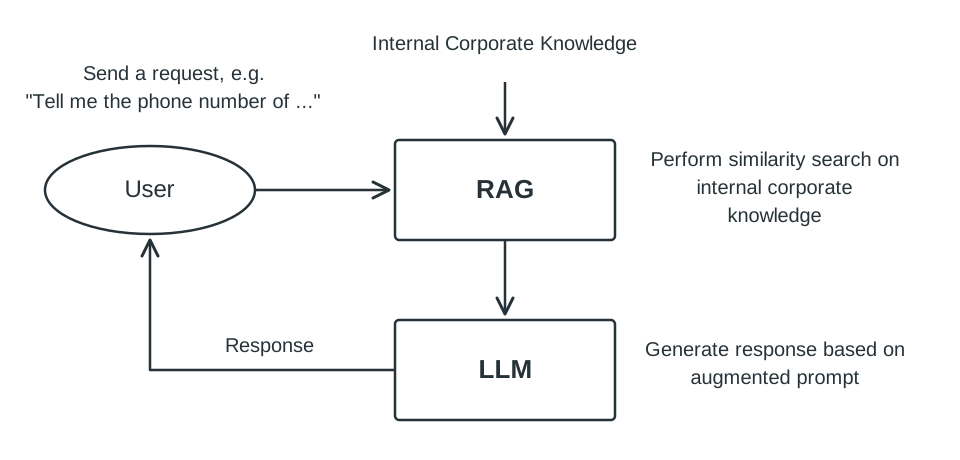
Here's the general flow of how information will be processed:
- The user sends a request. For example: "Tell me the phone number of a specific employee."
- The model needs to look up internal data — but the user's query is vague or non-literal, so it can't be simply turned into an SQL query. To handle this kind of fuzzy search, we'll convert the user's request into vector embeddings. This will be done by the embedder using the all-MiniLM-L6-v2 model.
- Once we have the vector representation of the query, we'll perform a similarity search using RAG. RAG will return relevant information, which we'll then inject into the prompt sent to the LLM.
For example, the final prompt to the LLM might look like this:
"Tell me the phone number of Tim from the sales department. Use the following data: Tim Cook, Sales Department, 0003332211 ..." - The model will then respond with an appropriate answer based on this augmented prompt.
This brings up a natural question: Where does RAG get its data from?
The answer is simple — we'll populate it ourselves. In real-world use cases, you'll need to build a proper knowledge base to support your LLM at scale.
As a tip: avoid loading very large text chunks into RAG, as this can hurt retrieval accuracy.
Our final component will be RAG itself, based on Weaviate.
We'll run it in Docker, as recommended by the developers. Weaviate is just one of many vector databases that can be used in this kind of architecture.
Step by step instructions
So, the first thing we'll need is a GPU-enabled EC2 instance.
A suitable option is g5.xlarge, but you can also choose to install everything on a local server — for example, with Ubuntu 24.04.
If you go with EC2, don't forget to increase the disk size to at least 30 GB.
Also, instead of manual configuration you may choose to use CloudFormation script from https://github.com/ArtemOganesyan/rag-sample.git
First, let’s update the system
sudo apt update && sudo apt upgrade -y
Install Docker
sudo apt install -y docker.io docker-compose python3 python3-pip git
Enable service
sudo systemctl enable docker --now
Restart Docker
sudo systemctl restart docker
Install NVIDIA drivers
sudo apt install -y build-essential dkms
mkdir ~/nvidia
cd ~/nvidia
wget https://developer.download.nvidia.com/compute/cuda/repos/ubuntu2404/x86_64/cuda-ubuntu2404.pin
sudo mv cuda-ubuntu2404.pin /etc/apt/preferences.d/cuda-repository-pin-600
sudo apt-key adv --fetch-keys https://developer.download.nvidia.com/compute/cuda/repos/ubuntu2404/x86_64/3bf863cc.pub
sudo add-apt-repository "deb https://developer.download.nvidia.com/compute/cuda/repos/ubuntu2404/x86_64/ /"
sudo apt update
sudo apt install -y cuda-drivers
Finally let's reboot the server.
sudo reboot
After reboot you may check your GPU status with the following command.
nvidia-smi
Install Weaviate
Weaviate is an open-source vector database designed for efficient storage, indexing, and retrieval of high-dimensional data, such as embeddings from machine learning models. It enables fast semantic search and is commonly used in applications involving natural language processing, recommendation systems, and retrieval-augmented generation (RAG). Weaviate supports RESTful and GraphQL APIs, integrates with popular embedding models, and can be deployed via Docker, Kubernetes, or cloud services.
Let's create our work folder
mkdir ~/rag-sample
Then create folder for Weaviate and navigate to that folder.
mkdir ~/rag-sample/weaviate
cd ~/rag-sample/weaviate
Create docker-compose file for our RAG (docker-compose.yaml)
version: '3.4'
  services:
    weaviate:
      image: semitechnologies/weaviate:latest
      restart: always
      ports:
        - "8000:8080"
      environment:
        QUERY_DEFAULTS_LIMIT: 25
        AUTHENTICATION_ANONYMOUS_ACCESS_ENABLED: 'true'
        PERSISTENCE_DATA_PATH: './data'
        DEFAULT_VECTORIZER_MODULE: 'none'
        ENABLE_MODULES: 'none'
        CLUSTER_HOSTNAME: 'node1'
Now run it
sudo docker-compose up -d
After launching, Weaviate should be accessible on port 8000.
You can verify this by sending a GET request to http://your_server_ip:8000/v1/schema
The response should be an empty array, since we haven't created any schema yet. If you don't get a response, check your Security Group settings.
If you want to try adding document right now you can send POST request to http://your_server_ip:8000/v1/objects
{
  "class": "Kb",
  "properties": {
    "text": "Some text"
  },
  "vector": [0.05860447138547897]
}
To query documents you send POST request to http://your_server_ip:8000/v1/graphql that looks like this.
{
  "query": "{ Get { Kb( nearVector: { vector: [0.05860447138547897], certainty: 0.7 } ) { text } } }"
}
Install LLaMA
To install and setup our model, first create a work folder.
mkdir ~/rag-sample/hermes-llama
cd ~/rag-sample/hermes-llama
Setup Python environment
sudo apt install python3-venv
python3 -m venv venv
source venv/bin/activate
Install HuggingFace Hub
pip install huggingface_hub
Create python script to download the model (model_download.py)
from huggingface_hub import snapshot_download

snapshot_download(
    repo_id="NousResearch/Hermes-3-Llama-3.1-8B",
    local_dir="./llama-model/hermes-3-llama-3_1-8B",
    local_dir_use_symlinks=False,
    resume_download=True,
    token=None
)
Run to download model.
python model_download.py
Install Python dependencies.
pip install fastapi pydantic torch transformers uvicorn bitsandbytes accelerate
Create FastAPI wrapper (hermes_llama.py)
from fastapi import FastAPI
from pydantic import BaseModel
import torch
from transformers import AutoTokenizer, AutoModelForCausalLM, BitsAndBytesConfig
import uvicorn
from fastapi.middleware.cors import CORSMiddleware

app = FastAPI()

app.add_middleware(
    CORSMiddleware,
    allow_origins=["*"],
    allow_methods=["*"],
    allow_headers=["*"],
)

model_id = "llama-model/hermes-3-llama-3_1-8B"
tokenizer = AutoTokenizer.from_pretrained(model_id, trust_remote_code=True)

bnb_config = BitsAndBytesConfig(
    load_in_4bit=True,
    bnb_4bit_use_double_quant=True,
    bnb_4bit_quant_type="nf4",
    bnb_4bit_compute_dtype=torch.float16
)

model = AutoModelForCausalLM.from_pretrained(
    model_id,
    torch_dtype=torch.float16,
    device_map="auto",
    quantization_config=bnb_config
)

class ChatRequest(BaseModel):
    messages: list

@app.post("/chat")
async def chat(request: ChatRequest):
    messages = request.messages
    prompt = tokenizer.apply_chat_template(
        messages, return_tensors="pt", add_generation_prompt=True
    ).to(model.device)
    output = model.generate(
        prompt,
        max_new_tokens=64,
        temperature=0.7,
        do_sample=True,
        top_p=0.95,
        eos_token_id=tokenizer.eos_token_id
    )
    response = tokenizer.decode(output[0][prompt.shape[-1]:], skip_special_tokens=True)
    return {"response": response.strip()}

if __name__ == "__main__":
    uvicorn.run("hermes_llama:app", host="0.0.0.0", port=8001)
You can try to run it in foreground to check if everything works properly.
python hermes-llama.py
Model should be available on port 8001 of your server and you can test it by sending POST request to http://your_server_ip:8001/chat with the following json
{
  "messages": [
    {"role": "system", "content": "Provide short concise response."},
    {"role": "user", "content": "What is the capital of France?"}
  ]
}
To start in background use the following command
nohup uvicorn hermes_llama:app --host 0.0.0.0 --port 8001 --workers 1 > model_server.log 2>&1 &
Install Embedder
Create a folder
mkdir ~/rag-sample/embedder
cd ~/rag-sample/embedder
Create Python environment
python3 -m venv venv
Install Python packages
pip install fastapi pydantic sentence_transformers uvicorn
This model is not so big so we can launch it without downloading. Create python script for it (embedder_service.py)
from fastapi import FastAPI
from pydantic import BaseModel
from sentence_transformers import SentenceTransformer
import uvicorn
from fastapi.middleware.cors import CORSMiddleware

app = FastAPI()

app.add_middleware(
    CORSMiddleware,
    allow_origins=["*"],
    allow_methods=["*"],
    allow_headers=["*"],
)

model = SentenceTransformer('all-MiniLM-L6-v2')

class TextRequest(BaseModel):
    text: str

@app.post("/embed")
async def get_embedding(request: TextRequest):
    text = request.text
    embedding = model.encode(text).tolist()
    return {"embedding": embedding}

if __name__ == "__main__":
    uvicorn.run("embedder_service:app", host="0.0.0.0", port=8002)
To start in foreground run with python
python embedder_service.py
To start in background us the following command
nohup uvicorn embedder_service:app --host 0.0.0.0 --port 8002 --workers 1 > embedder_server.log 2>&1 &
Alternatively to start model and embedder you can use bash scripts from the repository: https://github.com/ArtemOganesyan/rag-sample.git
Now you are ready to test it.
Quick-Start Instructions
Clone or download repository to your computer
git clone https://github.com/ArtemOganesyan/rag-sample.git
Login to your AWS Web Console
Check or set your current region as us-east-2 (Ohio) on the top right corner of the console
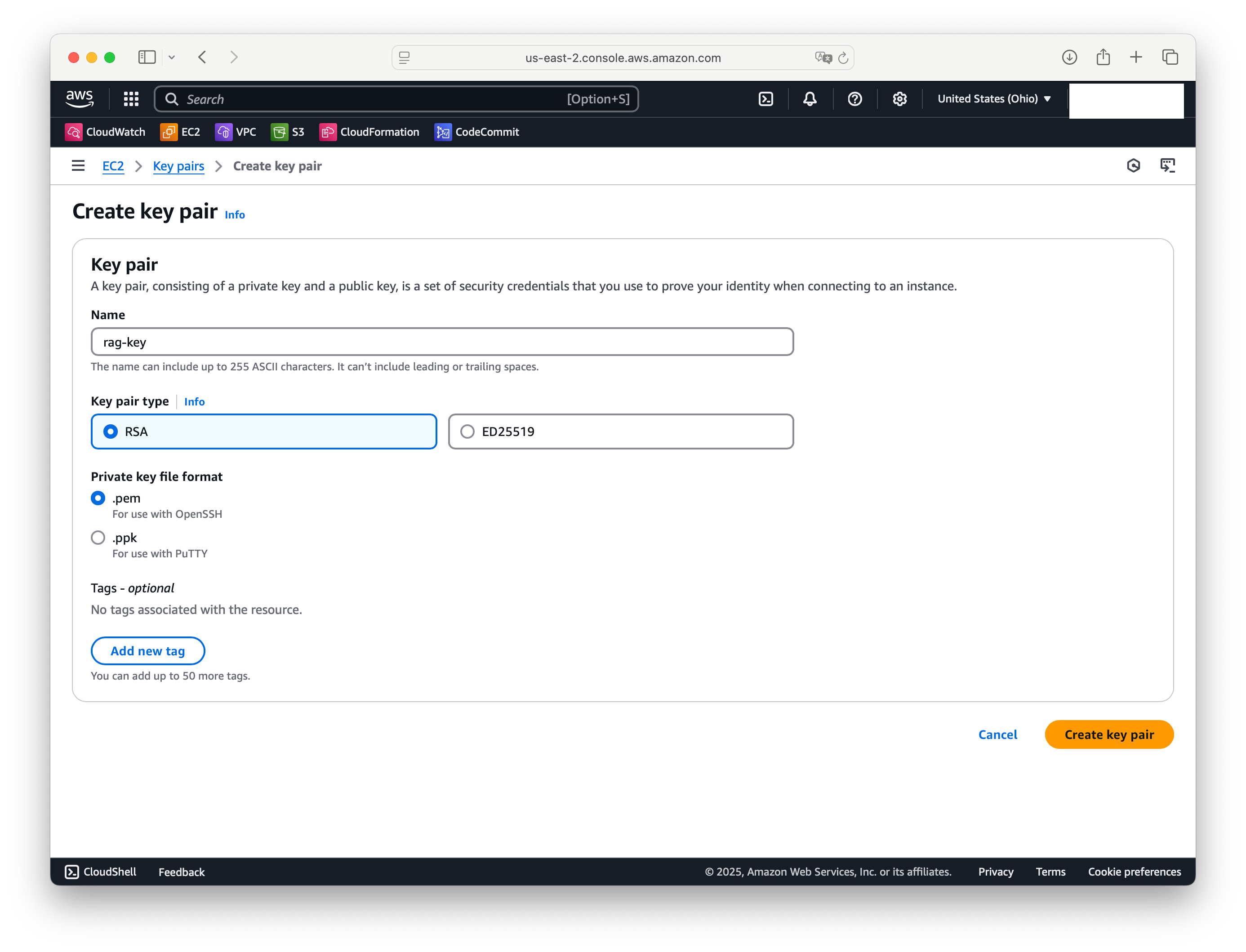
On the left side menu go to "Key Pairs"
Click "Create Key Pair"
Type name of the key pair - "rag-key", Key pair type - RSA, Private key file format - .pem
Click "Create key pair" - The key will be automatically downloaded to your computer
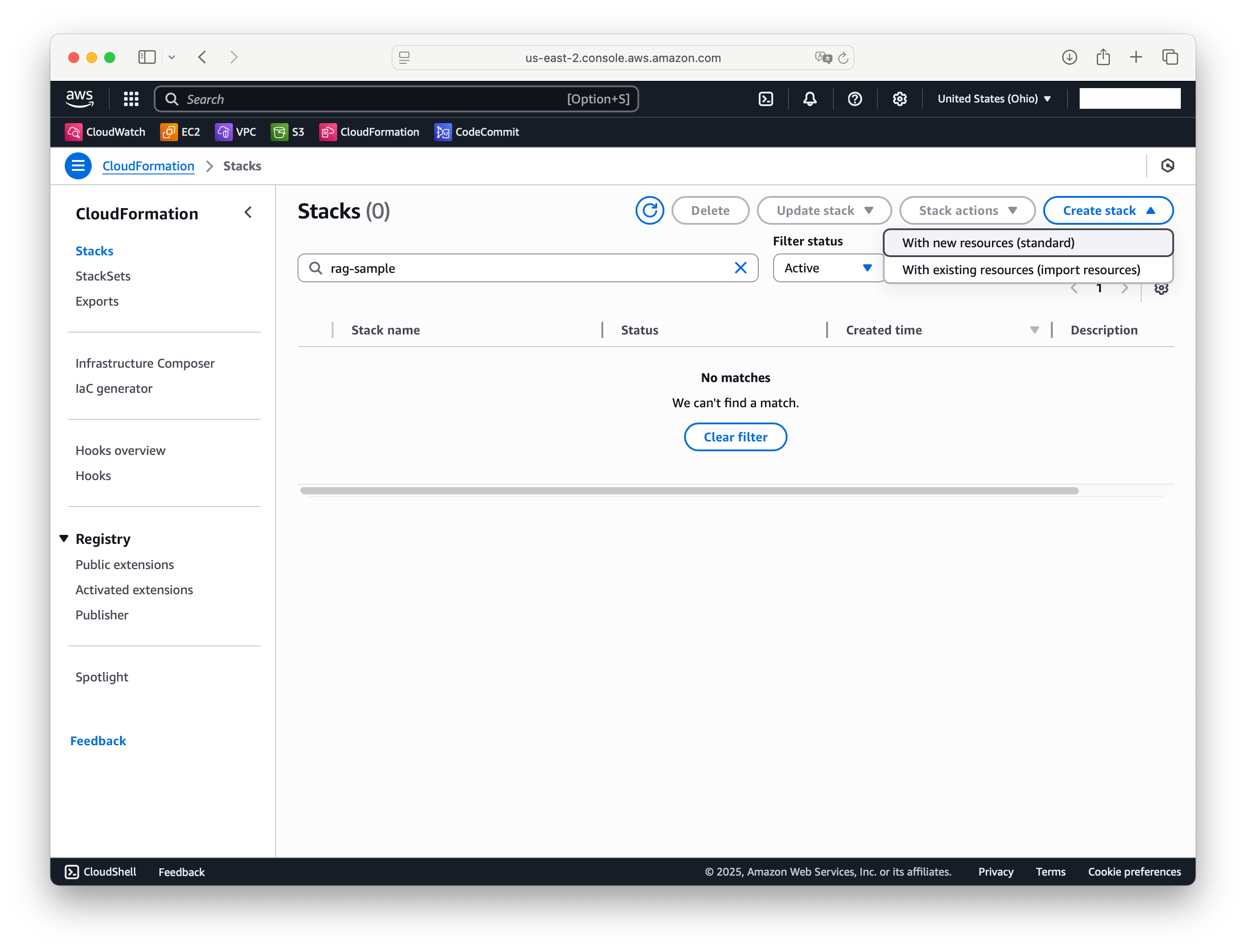
Next, go to the CloudFormation console to deploy the stack. You'll need the file from the repository you downloaded — rag-sample/cloud-formation/llama-rag-deployment.yaml
Click "Create Stack" on the console and select "With new resources"
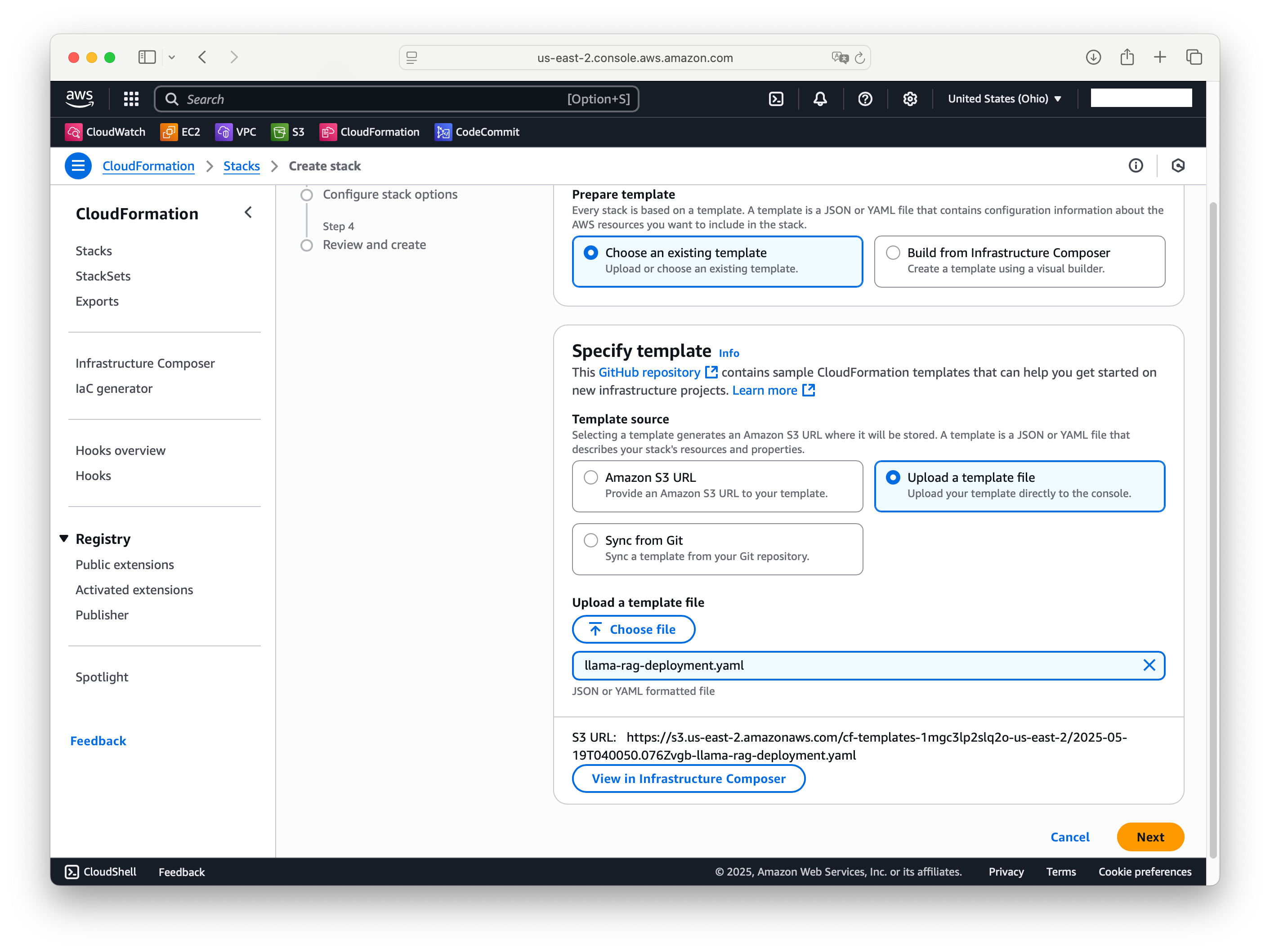
Select "Upload Template File", Click "Choose file" and select "llama-rag-deployment.yaml" on your machine. Then click "Next"
Next screen shows some deployment parameters. Set desired Stack name for the deployment (eg. rag-sample)
Default parameters are OK for most cases. Double check that Key name is the same that we set for our key previously (rag-key) and region is us-east-2 (Ohio)
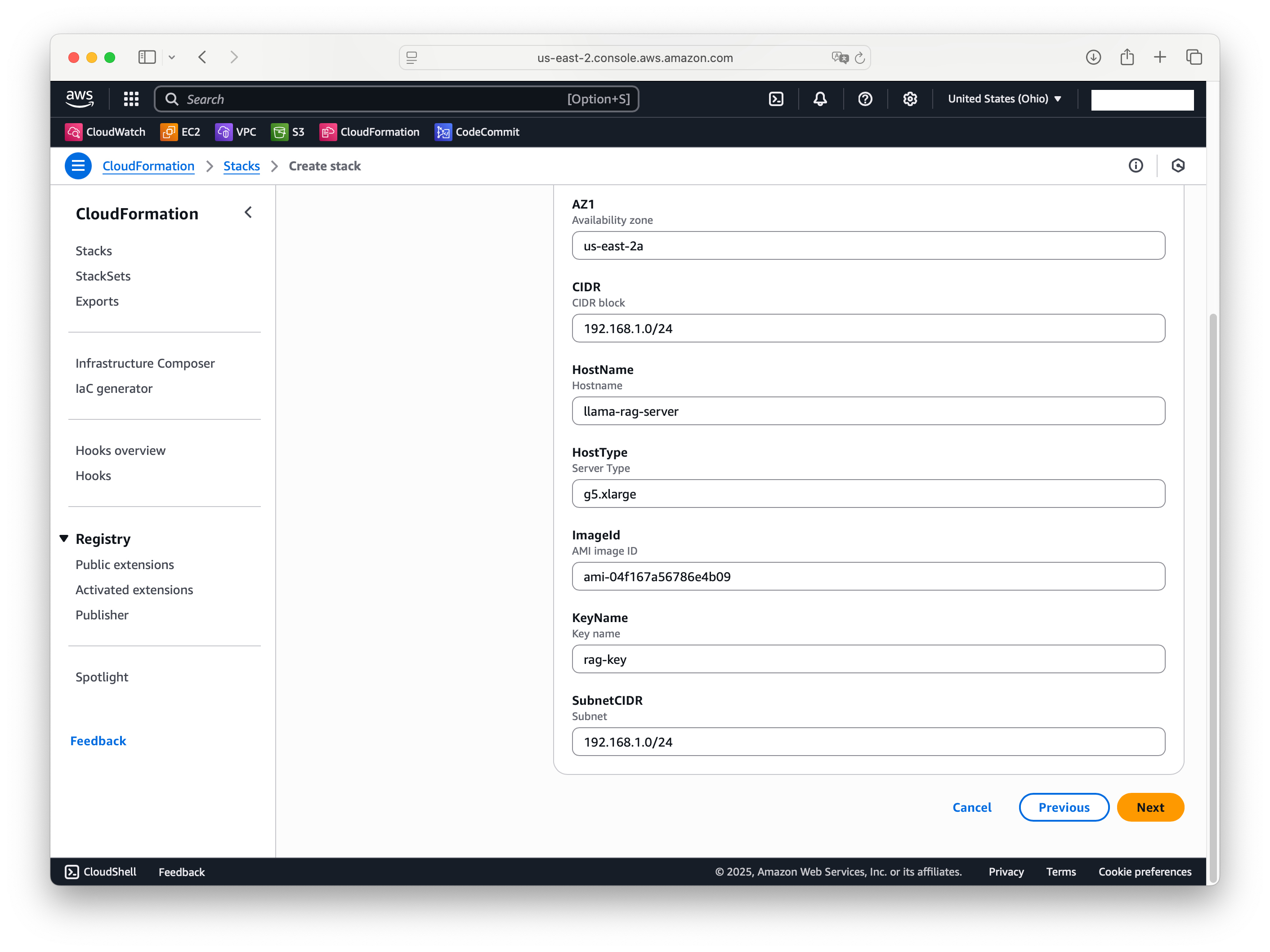
Click "Next", aknowledge resource capabilities on the next page and click "Next" again.
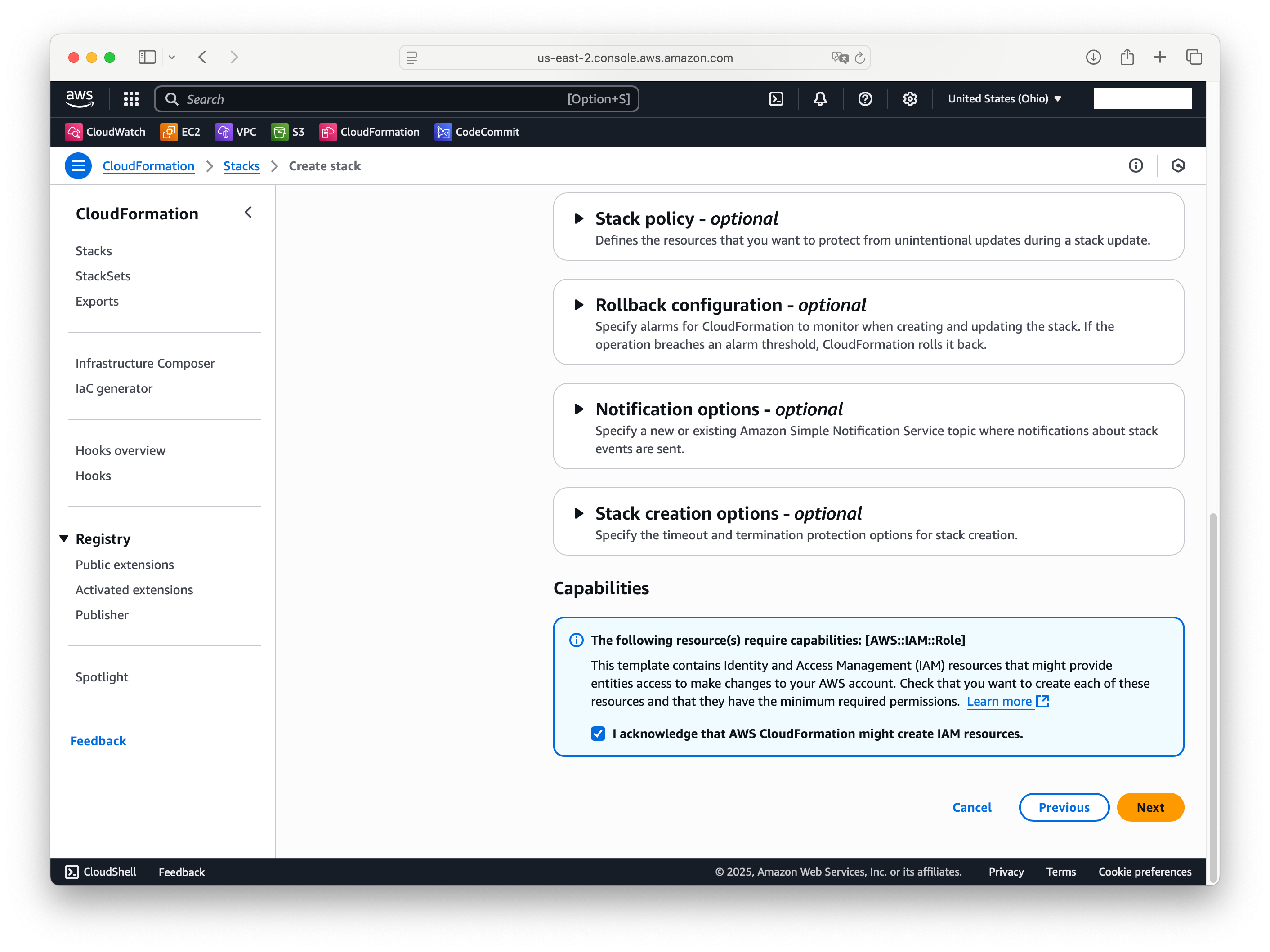
Review final screen and click "Submit". It will start Stack deployment and show progress page. This process takes some time and at the end should display Success status to you. Sometimes you need to update the status (small reload button on the page).
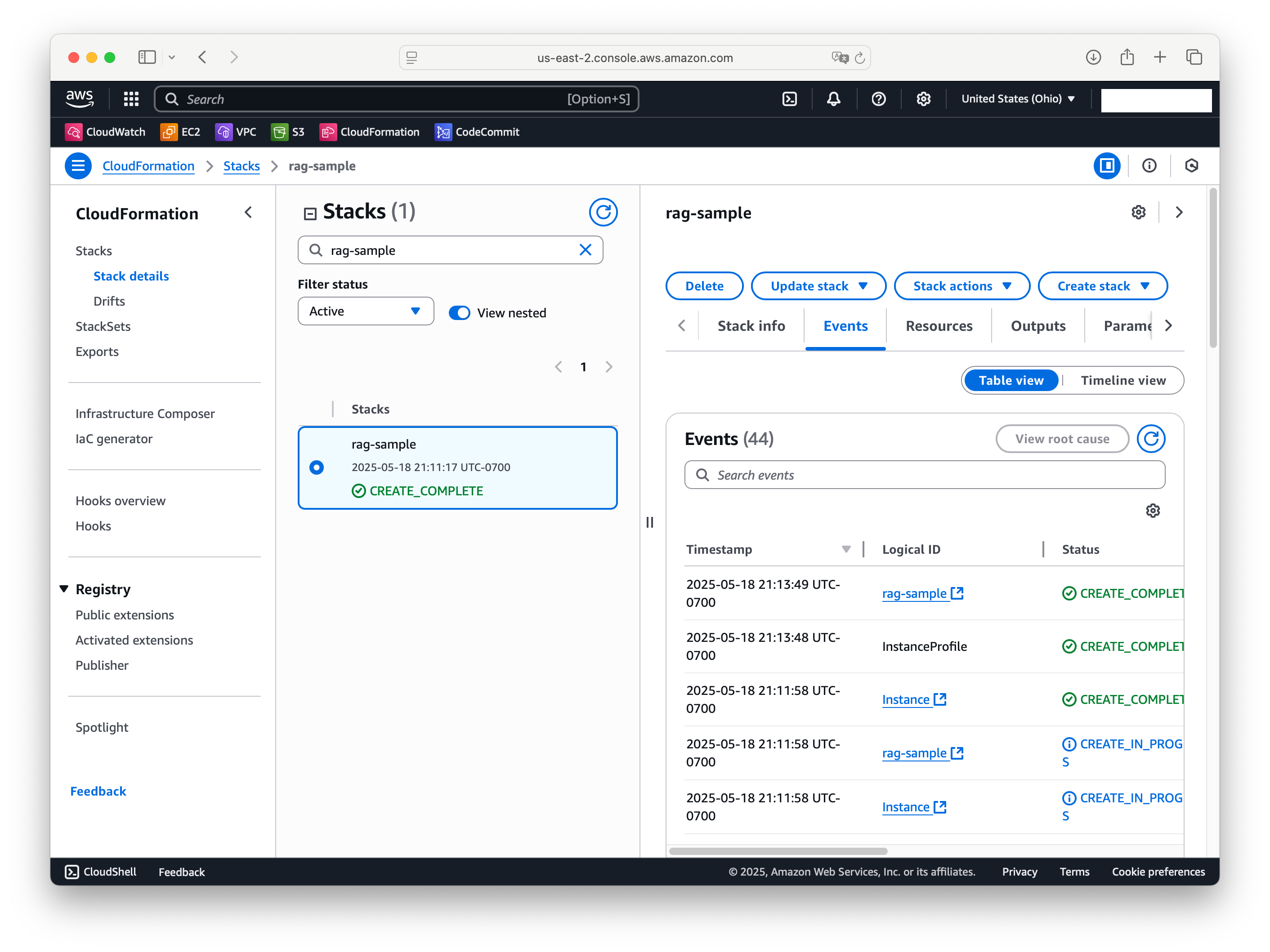
After you have this screen there are some other tasks on the server that will install everything we need. To monitor this tasks you may open EC2 Console, click on the new instance and click "Connect".
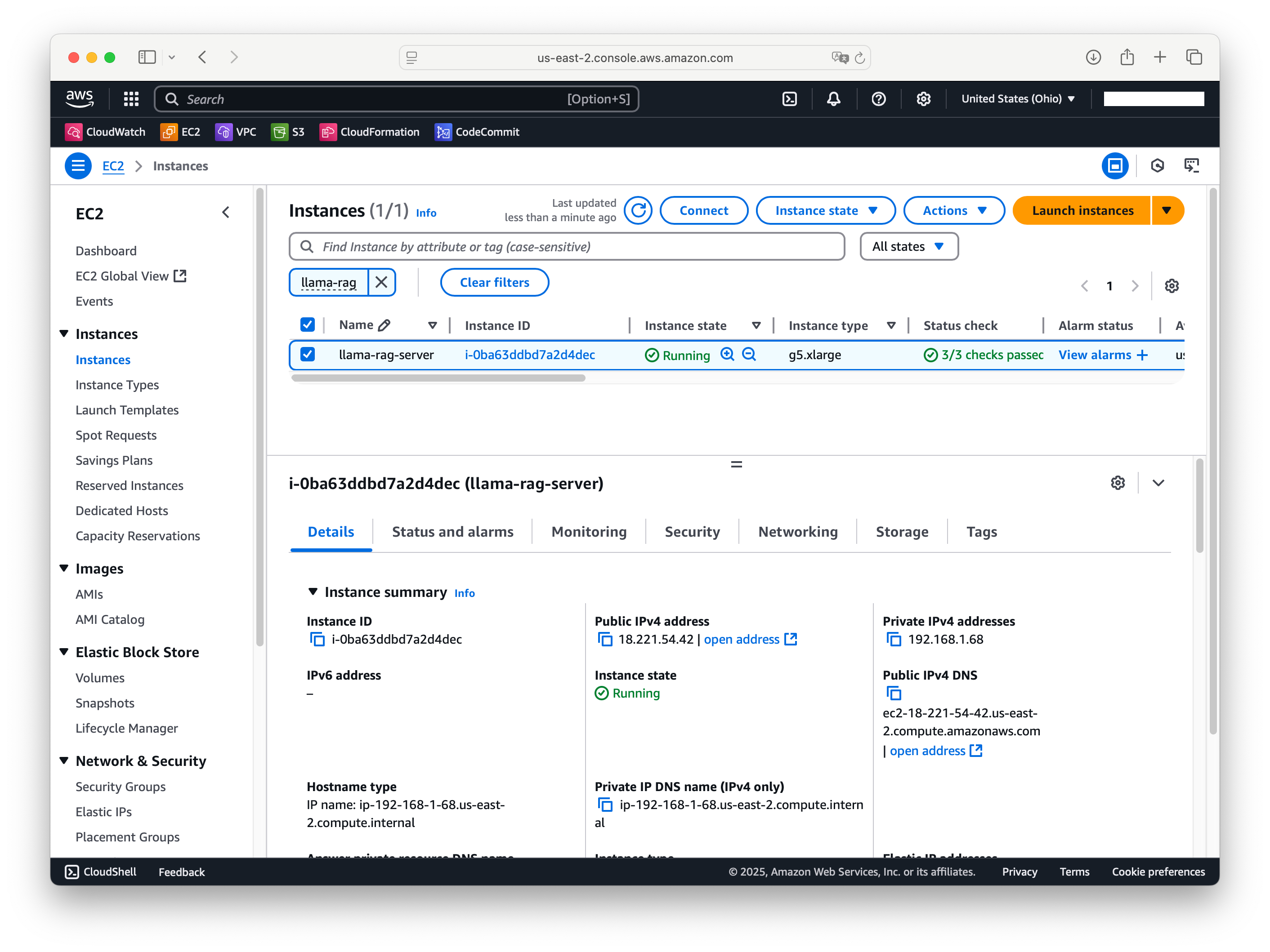
On the next screen click "Connect" one more time for EC2 Instance connect
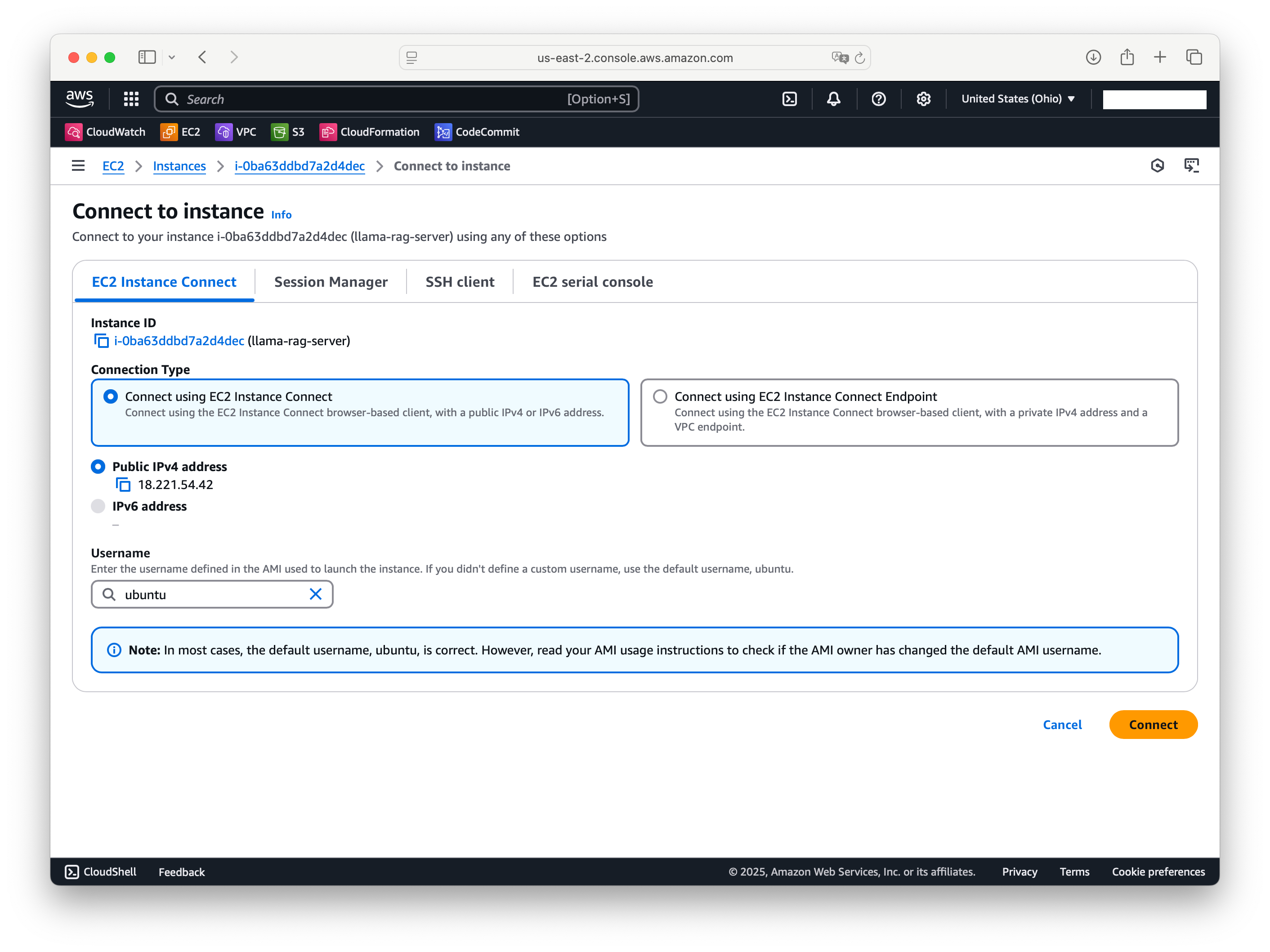
Type the following command and press Enter to see the installation log file contents.
tail -f /var/log/user-data.log
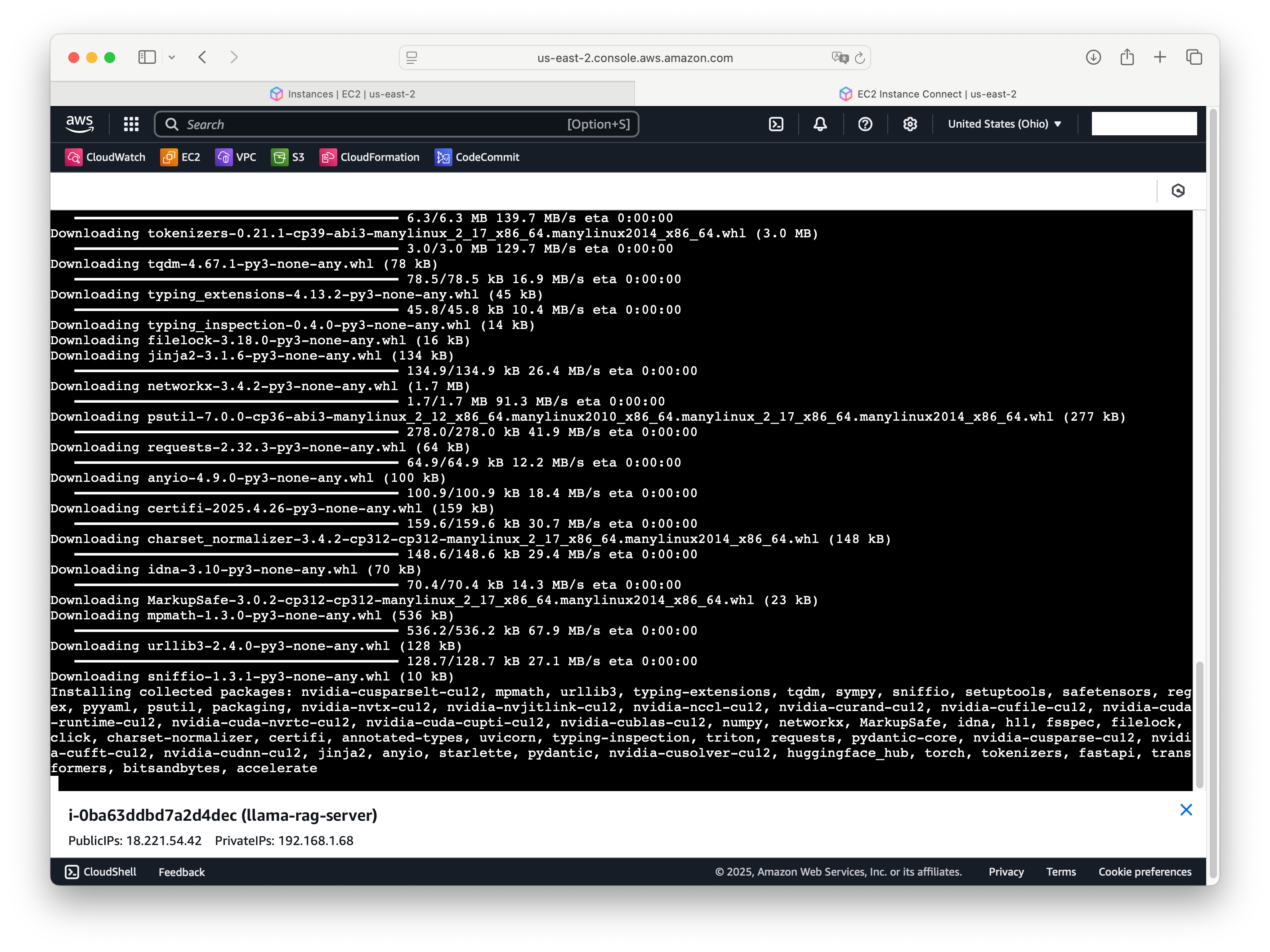
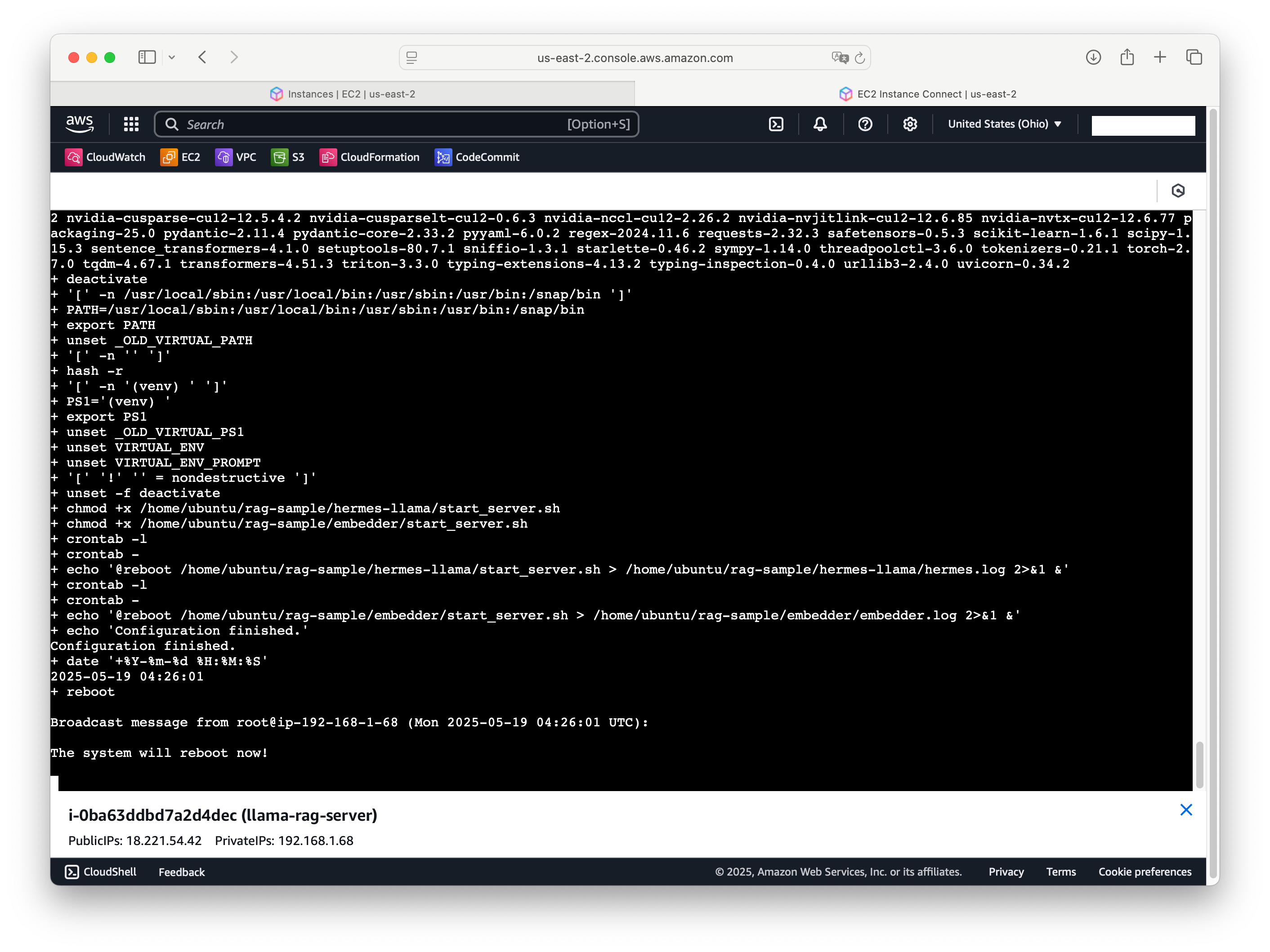
Once completed you should see message "Configuration finished" in the console and server will restart automatically.
How to test
Next you'll need a sample html page from the repository - client/index.html. You may open it locally in any browser.
Please keep in mind that first launch of the model takes a bit longer and it might not be available immediately after server restart. However should be up and running in ~5 minutes.
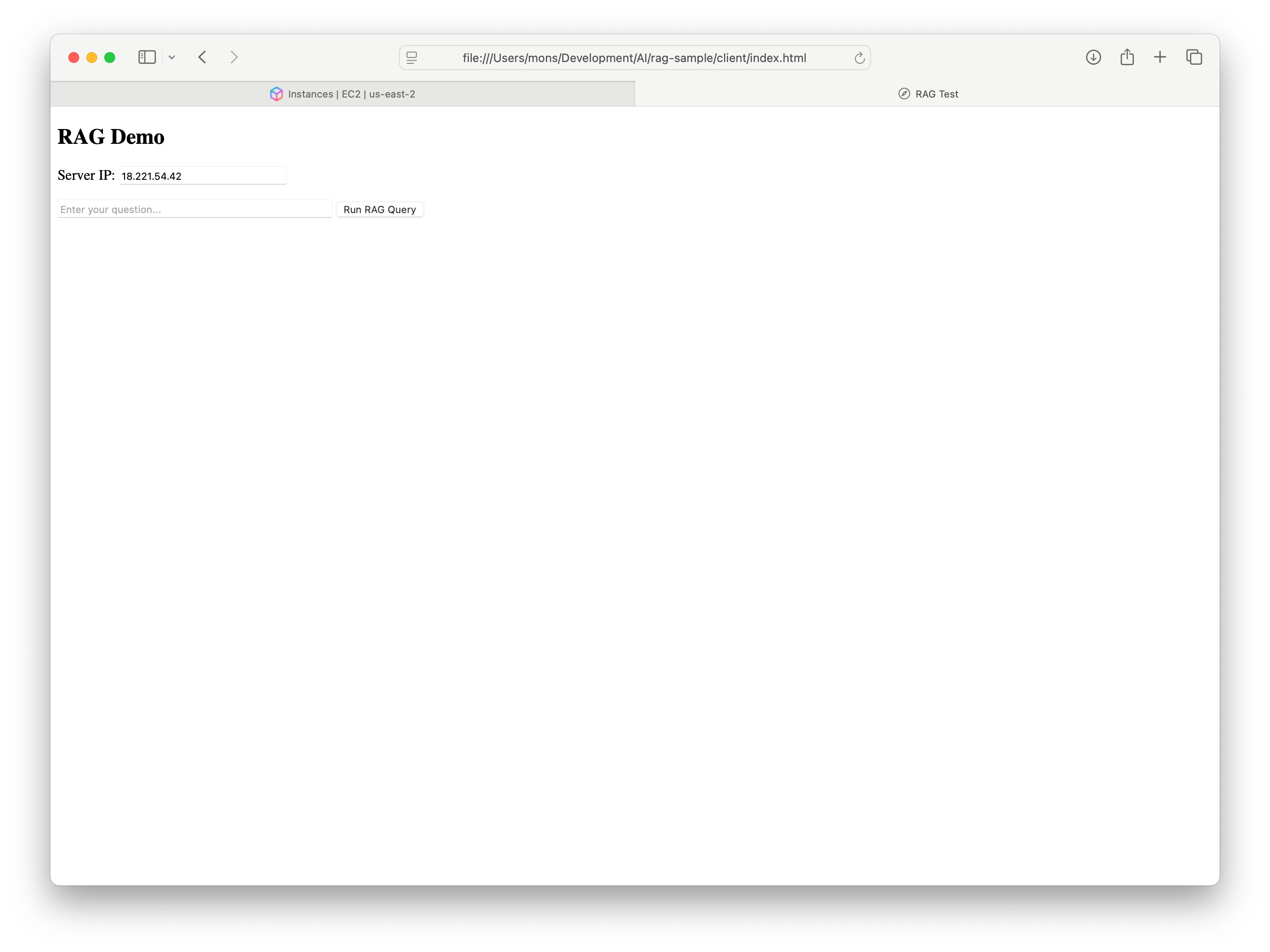
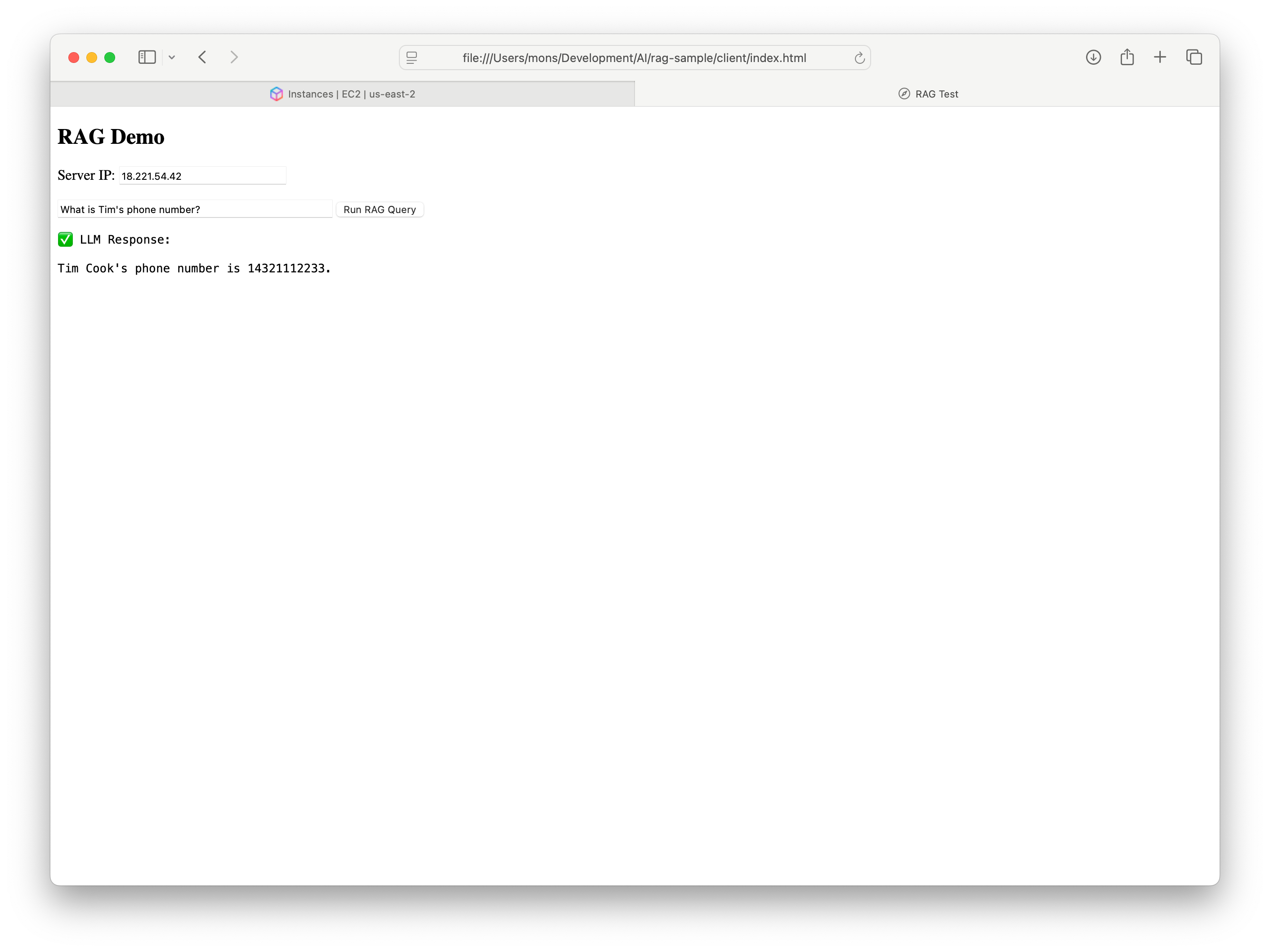
Type IP address of your server from console page or EC2 Console (scroll list of instances to the right to see it). Then provide some request (ex. What is Tim's phone number?) and click "Run RAG Query".
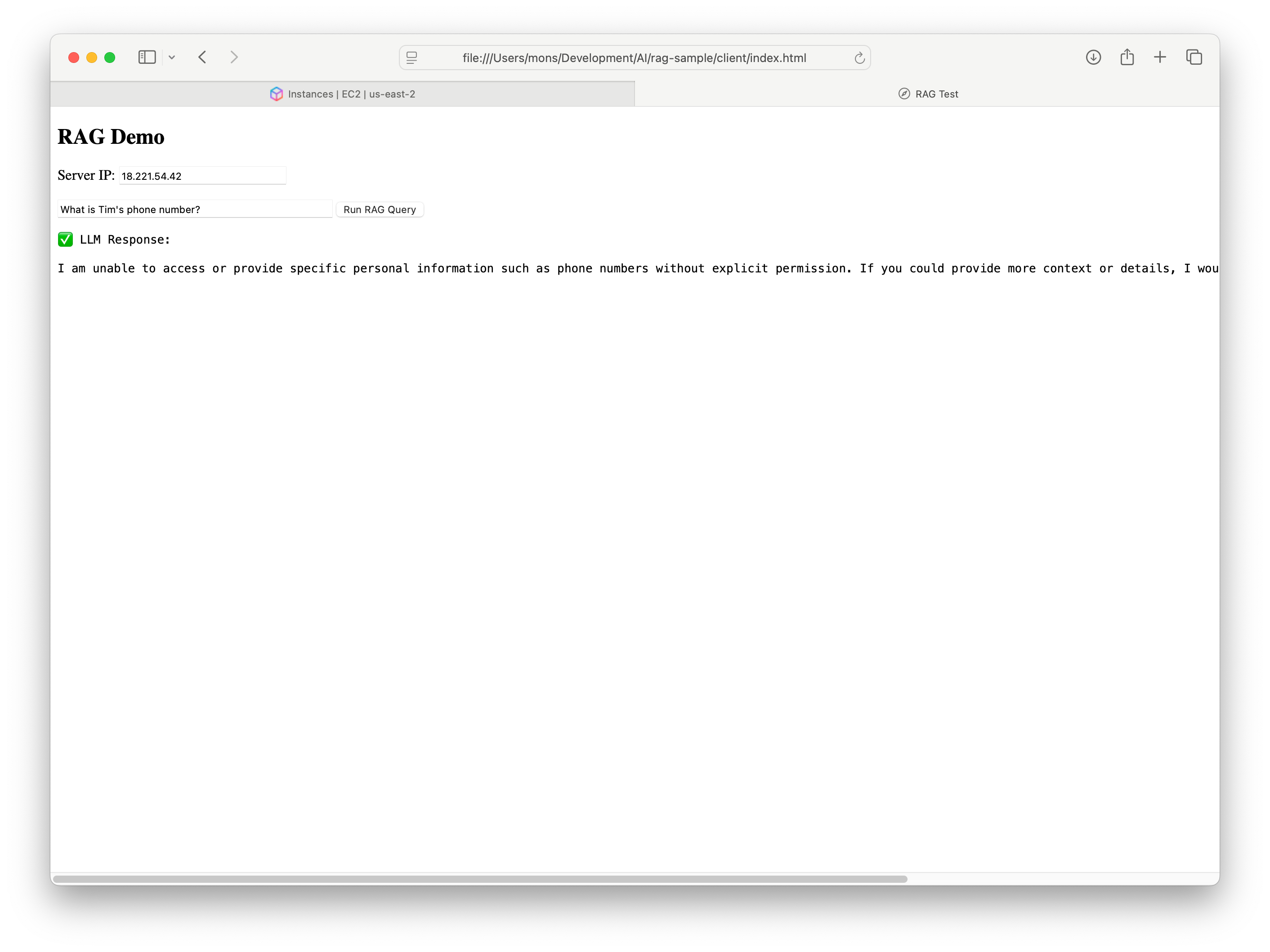
Most likely you will have standard response that model doesn't have any personal or specific information about it.
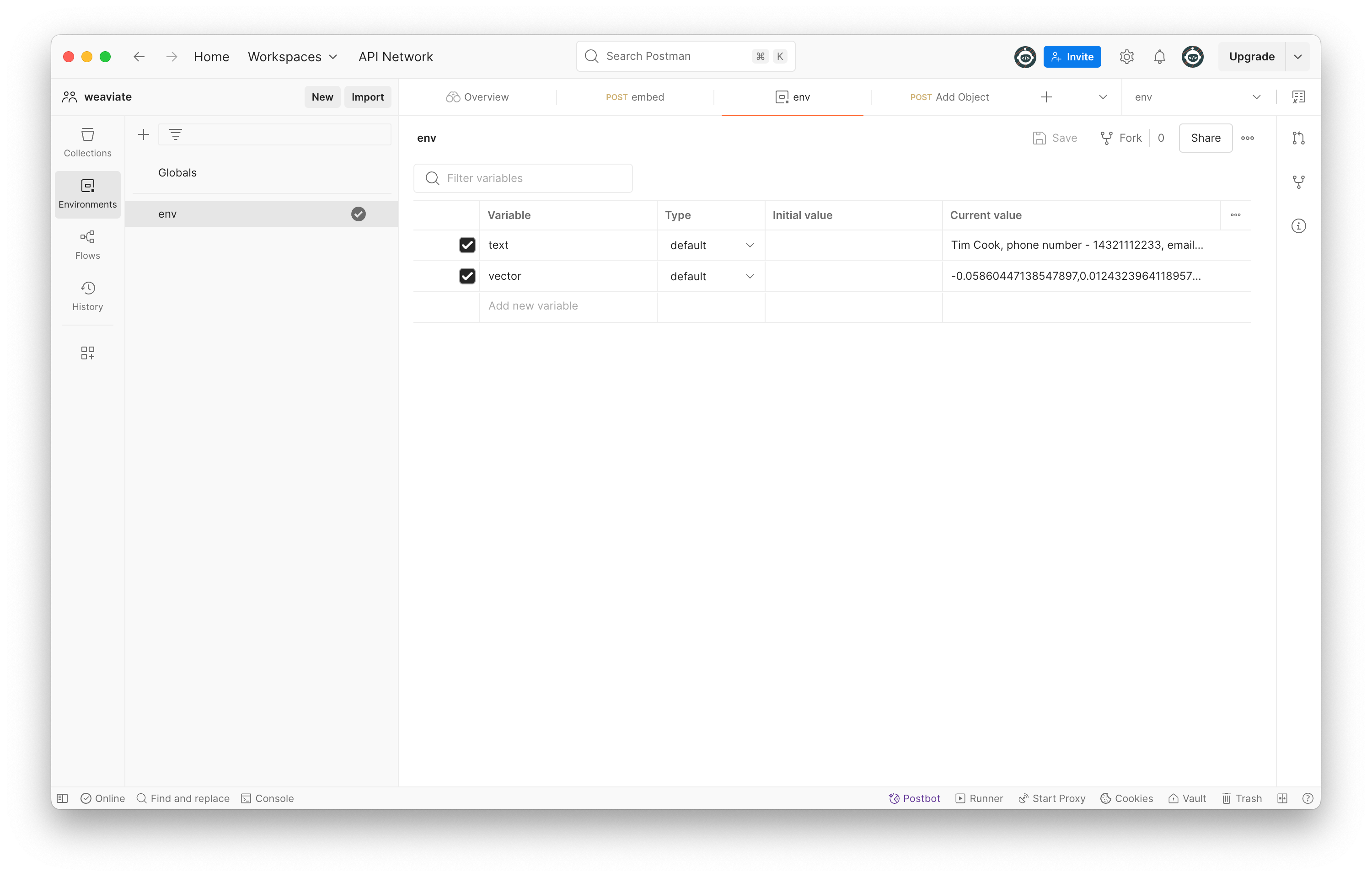
Now we are going to add this information to the RAG. You will need Postman or curl for it. I prepared Postman collection for you that you can find under rag-sample/postman folder. Import both files to Postman. Set text in the environment that you what to add to RAG (eg. Tim Cook, phone number - 14321112233, email - tim.cook@gmail.com)
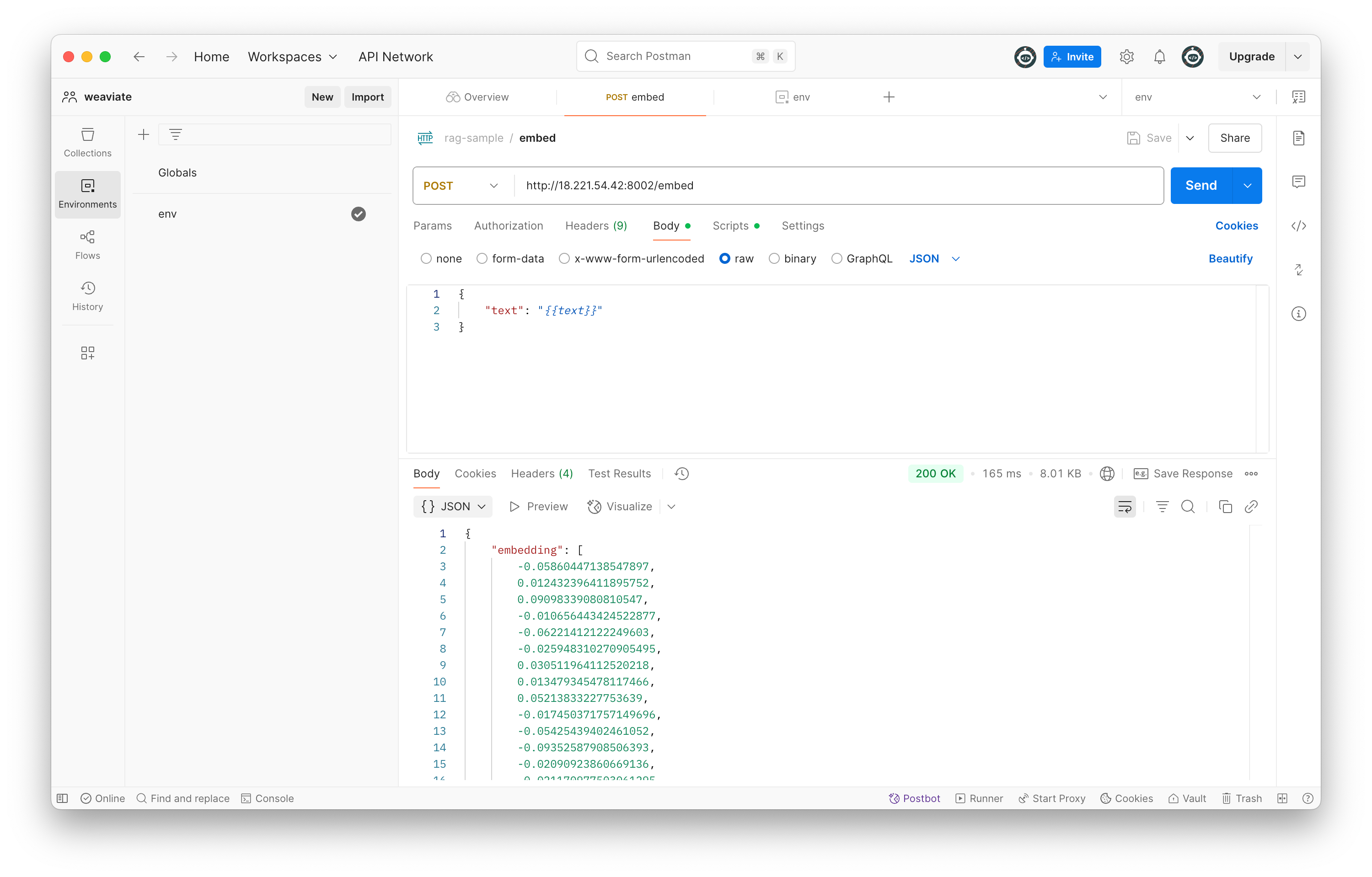
We need to send this as a POST request to embedder service at http://your_server_ip:8002/embed, response will include calculated vectors.
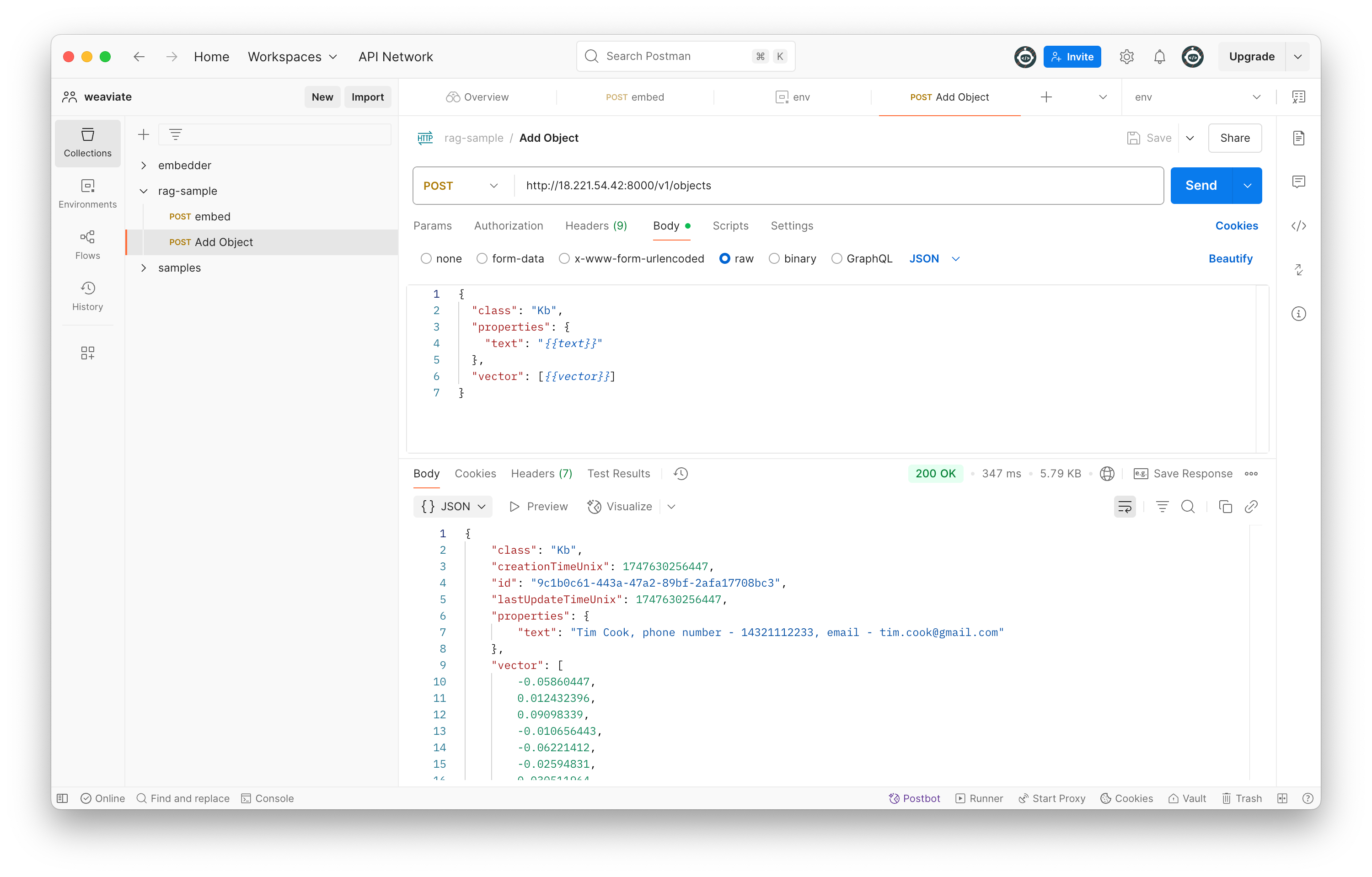
Next we whant to add text with vectors to our RAG. Both values are already in Postman env so you may open request "Add Object", adjust ip address and send it.
After you did this, Tim's information will be found in RAG and added to the request for LLM. Try to send the same request again. You should see something like this.
Configurations! You just set up your own LLM with RAG.
If you've found any discrepancies, would like to add something, or simply want to say thank you, you can do so here - LinkedIn Post.